The official WhatsApp Business API error list is extensive, but when integrating messaging with CRM systems, certain errors frequently occur. Understanding these specific error codes is crucial for maintaining smooth communication and avoiding disruptions. The error code 131047, for instance, indicates a message dropped due to the recipient not having interacted within the 24-hour window. This can significantly impact customer engagement strategies. Similarly, 131008 arises when a template with a dynamic URL button is sent without the necessary button component, leading to failed message delivery. Another common error, 190, involves expired or unparseable tokens, often due to improper encryption handling. The error 132000 signals a mismatch between the number of parameters sent and those declared in the approved template, causing message failures. However, the most challenging issue might be a failure without a code: when a message's webhook result isn't stored, leaving it marked as sent indefinitely. By the end of this guide, you'll have practical solutions and preventive measures for these common pitfalls, ensuring smoother API integration.
Why the 24-hour window exists and what it costs to miss it
Error code 131047 is a common issue encountered when using the WhatsApp Business API. It signifies that a message was dropped because it was sent outside the 24-hour customer service window without an approved template. Understanding this window is crucial for businesses aiming to maintain effective communication with their customers.
The Significance of the 24-hour Window
The 24-hour messaging window is a policy implemented by WhatsApp to encourage timely responses and ensure customer satisfaction. According to Meta, businesses can freely communicate with users who have interacted with them within the last 24 hours. This interaction could be a message, a click, or any form of engagement initiated by the user.
Implications of Missing the Window
When a message is sent outside this 24-hour period without using a pre-approved template, it results in error code 131047. This not only disrupts communication but can also lead to missed opportunities for customer engagement. Suppose a customer has a query that goes unanswered due to this error. The delay in response can lead to dissatisfaction and potentially drive the customer to a competitor.
Re-engagement with Approved Templates
To re-engage customers after the 24-hour window, businesses must use approved message templates. These templates are predefined messages that have been reviewed and accepted by WhatsApp. They allow businesses to communicate with users even after the 24-hour period has lapsed, ensuring continuity in customer service.
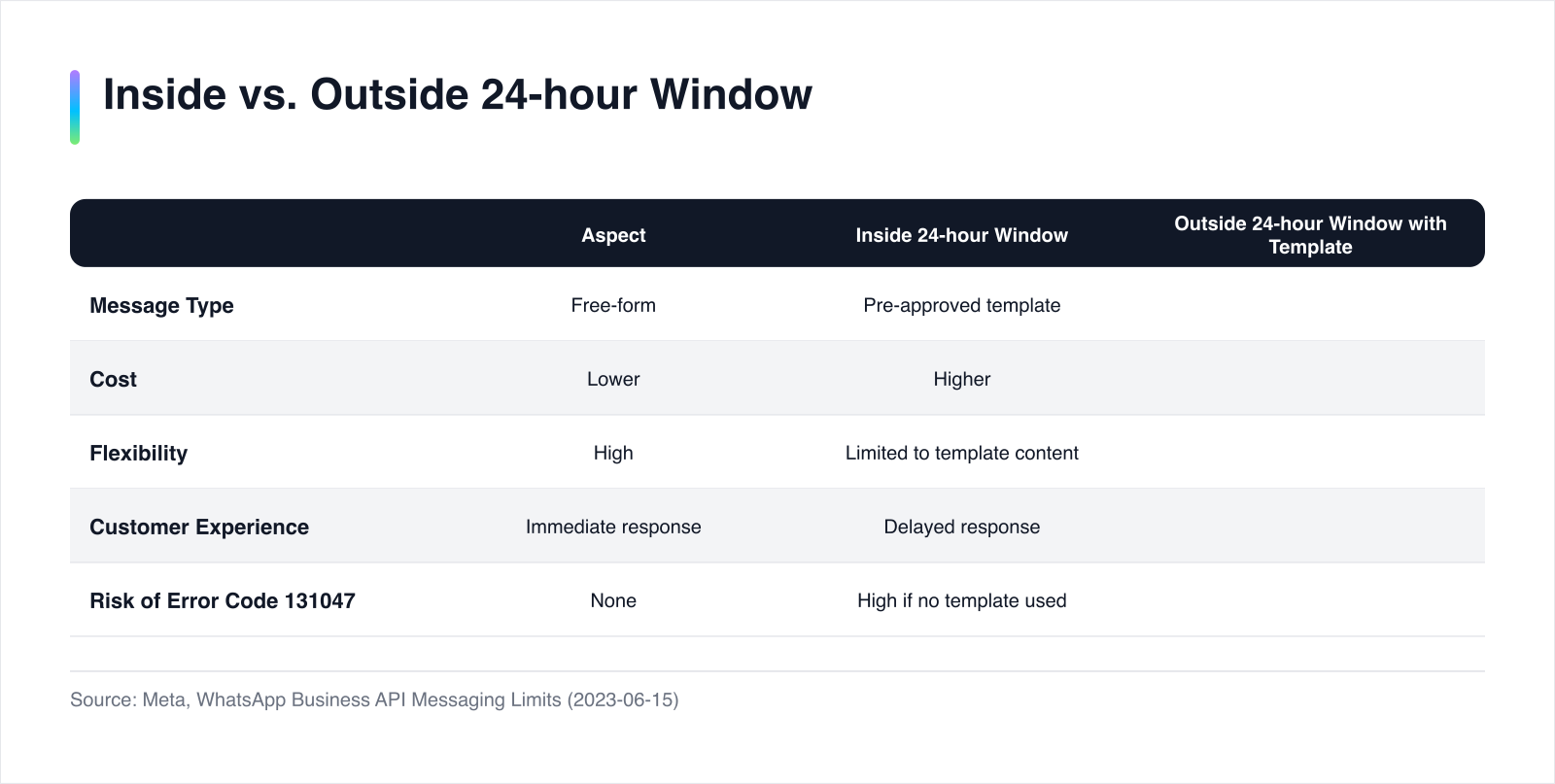
Comparison: Inside vs. Outside the 24-hour Window
| Aspect | Inside 24-hour Window | Outside 24-hour Window with Template |
|---|---|---|
| Message Type | Free-form | Pre-approved template |
| Cost | Lower | Higher |
| Flexibility | High | Limited to template content |
| Customer Experience | Immediate response | Delayed response |
Risk of Error Code 131047 | None | High if no template used |
Costs of Missing the Window
Missing the 24-hour window can have tangible costs. Using templates incurs additional charges, which can add up if a business frequently misses the window. Moreover, the need for template approval can delay communication, impacting customer satisfaction. Financially, the costs include both the direct expense of using templates and the potential revenue loss from dissatisfied customers.
understanding and managing the 24-hour messaging window is essential for businesses using the WhatsApp Business API. By ensuring timely responses and utilizing approved templates when necessary, companies can maintain effective communication and avoid the pitfalls associated with error code 131047. For a deeper understanding of the 24-hour window, see The WhatsApp 24-hour window, explained properly.
Template, Service or Marketing Message: Which One Applies
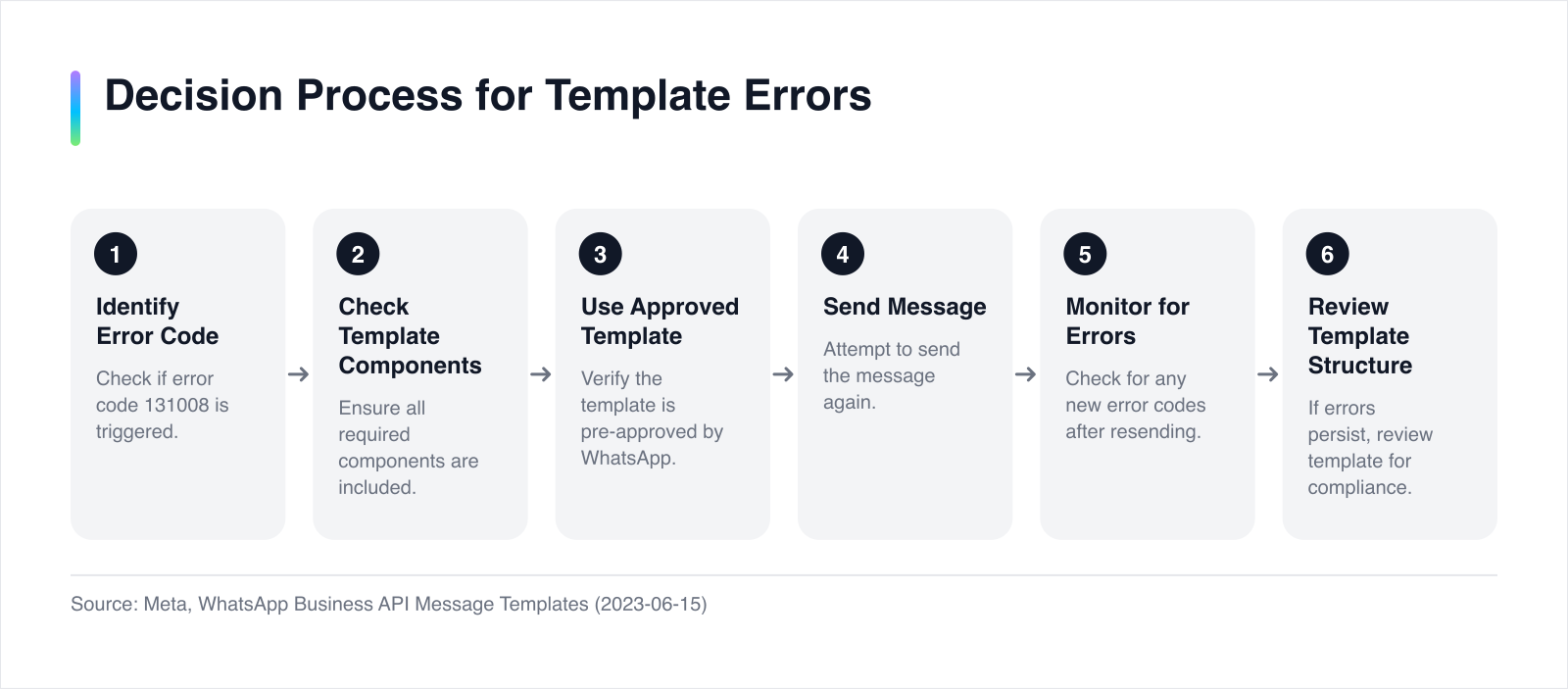
Error code 131008 often arises when a message template with a dynamic URL button is sent without the necessary button component. This error highlights the importance of correctly structuring message templates, which are essential for communication outside the 24-hour window.
Understanding Error Code 131008
Error code 131008 occurs when a template is sent without including the required components, such as a button for dynamic URL templates. According to Meta, each template must adhere to specific structural requirements, ensuring all components are present. Missing components lead to failed message delivery, disrupting communication.
Differentiating Service and Marketing Messages
Service messages and marketing messages serve different purposes and have distinct requirements. Service messages are used for transactional purposes, such as order confirmations or appointment reminders, and can be sent freely within the 24-hour window. Marketing messages, however, often require pre-approved templates and are generally used for promotional content.
Correct Template Usage
To avoid errors like 131008, businesses must ensure that each template is complete and approved by WhatsApp. Templates should be designed with all necessary components, such as buttons or placeholders, to function correctly. Suppose a business wants to send a marketing message with a dynamic URL. In this case, the template must include a button component to avoid delivery failures.
Decision Matrix: Choosing the Right Message Type
| Aspect | Service Message | Marketing Message |
|---|---|---|
| Purpose | Transactional | Promotional |
| Approval Requirement | None within 24-hour window | Pre-approved template required |
Error Risk (e.g., 131008) | Low if within window | High if components are missing |
| Usage Example | Order confirmation | Discount offer with URL button |
Implementing Templates Effectively
Imagine a company sending a promotional offer with a URL button to customers. If the template lacks the button component, it triggers error 131008, preventing delivery. To avoid this, the company should ensure the template is fully constructed and approved. This includes verifying that all dynamic elements, such as buttons, are correctly implemented.
By understanding the differences between service and marketing messages and ensuring correct template usage, businesses can prevent common errors and maintain effective communication. Properly structured templates not only avoid errors like 131008 but also enhance customer engagement, especially when operating outside the 24-hour window. For more insights, refer to The WhatsApp 24-hour window, explained properly.
How to Fix Expired or Unparseable Tokens
Error code 190 is a frequent issue encountered when using the WhatsApp Business API. This error typically indicates that a token has expired or cannot be parsed, often due to encryption mishandling. Addressing this problem is crucial for maintaining uninterrupted communication through the API.
Understanding Error Code 190
Error code 190 arises when the token used for authentication is either expired or improperly formatted. Tokens are essential for authenticating API requests, and any issue with them can halt message delivery. According to Meta, tokens must be refreshed regularly to prevent expiration.
Common Causes: Encryption Issues
One of the primary causes of error 190 is related to encryption. Tokens stored in an encrypted format must be decrypted before use. If the decryption process is flawed or skipped, the token may appear unparseable. Additionally, storing tokens without proper encryption handling can lead to expiration without timely refreshment.
Steps to Refresh Tokens
To resolve error 190, follow these steps to ensure tokens are correctly managed and refreshed:
- Verify Token Expiry: Check the token's expiration date. Tokens typically have a limited lifespan, and using an expired token will trigger error
190. Regularly monitor token validity to avoid unexpected expiration.
- Implement Proper Encryption: Ensure that tokens are stored securely using robust encryption methods. When accessing the token, decrypt it properly to avoid parsing errors. Suppose a company stores tokens in a database. They must implement a consistent encryption and decryption process to maintain token integrity.
- Automate Token Refresh: Set up an automated process to refresh tokens before they expire. This involves requesting a new token from WhatsApp's API and updating your system accordingly. Automation minimizes the risk of using expired tokens, reducing the occurrence of error
190.
- Monitor API Logs: Regularly review API logs for any authentication errors. Logs can provide insights into when and why tokens fail, allowing for proactive troubleshooting. Suppose a business notices repeated
190errors in the logs. They should investigate the token management process to identify and rectify the root cause.
- Test Token Handling: Conduct regular tests to ensure that token handling processes are functioning correctly. This includes verifying that tokens are being refreshed and decrypted without issues. Testing helps identify potential flaws before they impact live operations.
| Aspect | Without Automation | With Automation |
|---|---|---|
| Token Expiry Risk | High | Low |
| Manual Intervention Required | Frequent | Minimal |
Error 190 Occurrence | Common | Rare |
| Operational Efficiency | Lower | Higher |
By implementing these steps, businesses can effectively manage tokens, reducing the likelihood of error 190. Proper handling of tokens not only prevents disruptions but also enhances the reliability of API integrations. For further insights into managing the WhatsApp API, see The WhatsApp 24-hour window, explained properly.
Parameter mismatches: diagnosing error code 132000
Error code 132000 occurs when there is a discrepancy between the number of parameters sent in a message template and those declared in the approved template. This mismatch can hinder message delivery, disrupting communication.
Understanding Parameter Mismatches
When using the WhatsApp Business API, each message template must be pre-approved by WhatsApp, specifying the exact number of parameters it will use. These parameters are placeholders for dynamic content, such as names or dates. If a message is sent with more or fewer parameters than the template specifies, error 132000 is triggered, causing the message to fail.
Template Approval Requirements
According to Meta, message templates must be structured with precision. Each template is reviewed to ensure it meets WhatsApp's guidelines, including the correct number of parameters. This approval process is essential for maintaining consistency and preventing errors like 132000.
Correcting Parameter Counts
To resolve parameter mismatches and prevent error 132000, businesses must ensure that the parameters in their messages align with the approved template. Here's a checklist to guide you through the process:
Checklist for Correcting Parameter Mismatches:
- Verify Template Approval: Ensure that the template is approved and that the number of parameters is clearly defined. Suppose a company uses a template for appointment reminders with two parameters: the customer's name and appointment date. The message must include exactly two parameters to match the template.
- Match Parameters Precisely: Double-check that the number of parameters in the message matches the approved template. If a template requires three parameters, sending a message with only two will trigger error
132000.
- Test with Sample Data: Use sample data to test the template before sending. This helps identify any parameter mismatches early. Imagine testing a promotional message template with placeholders for product name and discount. By inserting sample data, you can ensure the parameters align correctly.
- Automate Parameter Checks: Implement automation to verify parameter counts before sending messages. Automation reduces human error and ensures consistency. For instance, a CRM system can be programmed to cross-check parameter counts against the template automatically.
- Review and Adjust Regularly: Periodically review templates and adjust parameter counts as needed. Business needs may evolve, requiring updates to templates and their parameters.
| Aspect | Without Automation | With Automation |
|---|---|---|
| Parameter Mismatch Risk | High | Low |
| Manual Intervention Required | Frequent | Minimal |
Error 132000 Occurrence | Common | Rare |
| Operational Efficiency | Lower | Higher |
By following this checklist, businesses can effectively manage parameters and avoid error 132000. Proper alignment of parameters not only prevents disruptions but also enhances the reliability of communication through the WhatsApp Business API. For more information on template structures, refer to The WhatsApp 24-hour window, explained properly.
The Silent Failure: When No Error Code Appears
Silent failures in the WhatsApp Business API occur when a message is marked as ‘sent’ but never reaches the recipient due to webhook issues. Unlike errors with specific codes, these failures can be elusive, making them challenging to diagnose and rectify. Addressing this requires a robust understanding of webhook setup and management.
Understanding Silent Failures
Silent failures happen when the webhook responsible for handling message delivery confirmations does not function correctly. This results in a message remaining in a perpetual ‘sent’ status without any error code to indicate the problem. According to Meta, webhooks are essential for real-time communication between the API and your CRM, providing status updates for message deliveries.
Webhook Setup and Management
Proper webhook configuration is crucial to prevent silent failures. A webhook must be correctly set up to receive and process delivery status notifications. This involves defining a callback URL where WhatsApp can send message status updates. If the webhook is misconfigured, these updates may not be received, leading to silent failures.
Imagine a company integrating WhatsApp into their CRM. They must ensure their webhook is configured with the correct callback URL and that the server handling these requests is reliable and responsive. Regular testing is vital to confirm that the webhook can handle various message statuses, including delivered, read, and failed.
Framework for Preventing Indefinite 'Sent' Status
To prevent messages from remaining indefinitely in a ‘sent’ status, businesses can implement a framework focusing on webhook reliability and monitoring. This framework involves several key components:
- Webhook Configuration: Ensure the webhook is correctly configured with the appropriate callback URL. Verify the server is capable of handling incoming requests promptly.
- Regular Testing: Conduct regular tests to ensure the webhook is functioning correctly. This includes simulating message deliveries and verifying that status updates are received and processed.
- Monitoring and Alerts: Implement monitoring tools to track webhook activity. Set up alerts for any anomalies, such as missing status updates, to enable quick intervention.
- Fallback Mechanisms: Develop fallback mechanisms to handle cases where the webhook fails to deliver status updates. This could involve retrying the message delivery or using alternative communication channels.
- Review and Optimization: Periodically review the webhook setup and optimize it based on performance metrics. Adjust configurations as needed to enhance reliability.
| Aspect | Without Framework | With Framework |
|---|---|---|
| Risk of Silent Failure | High | Low |
| Manual Intervention | Frequent | Minimal |
| Message Reliability | Lower | Higher |
| Operational Efficiency | Lower | Higher |
Suppose a business notices that messages are frequently stuck in a ‘sent’ status. By implementing this framework, they can systematically address the root causes and enhance the reliability of their message delivery process.
By focusing on robust webhook management and implementing a comprehensive framework, businesses can significantly reduce the occurrence of silent failures. This ensures that messages not only leave the system but also reach their intended recipients, maintaining effective communication and customer satisfaction. For further insights into managing WhatsApp API integrations, consider exploring The WhatsApp 24-hour window, explained properly.
Preventing WhatsApp API Errors in CRM Integrations
To effectively prevent WhatsApp API errors in CRM integrations, companies must prioritize understanding and managing the specific error codes that frequently arise. This involves not only recognizing the errors but also implementing robust processes to address them. For instance, ensuring message templates are correctly structured and approved can prevent errors like 131008 and 132000. Automation plays a critical role in reducing manual errors, such as expired tokens or parameter mismatches, by handling token refreshes and parameter checks systematically.
Moreover, companies should invest in reliable webhook configurations to avoid silent failures. Regular testing and monitoring of webhooks ensure that messages are delivered and statuses are updated accurately. This proactive approach minimizes disruptions and enhances communication reliability.
For businesses seeking to optimize their CRM integrations with WhatsApp, considering an AI-native CRM like Komplian could be the logical next step.
Sources & Further Reading
- Meta. "WhatsApp Business API Messaging Limits" (2023-06-15). https://developers.facebook.com/docs/whatsapp/api/rate-limits
- Meta. "WhatsApp Business API Message Templates" (2023-06-15). https://developers.facebook.com/docs/whatsapp/api/message-templates
- Meta. "WhatsApp Business API Authentication" (2023-06-15). https://developers.facebook.com/docs/whatsapp/api/authentication
- Meta. "WhatsApp Business API Webhooks". https://developers.facebook.com/docs/whatsapp/api/webhooks